

Guide
REA Ignite Project Profile Process
This process outlines how to correctly set up an REA Project Profile in Ignite and ensure that project data is successfully connected to HubSpot and the CRM.
⚠️ Important: Creating a Project Profile alone does not trigger data flow. A manual step is required to connect the profile to the CRM.
Create Project Profile in Ignite
- Log into REA Ignite / Agent Admin
- Create the Project Profile as per standard process
- Ensure all required project details are completed accurately
Submit REA Support Form (Critical Step)
Access via Agent Admin
- Go to Agent Admin
- Click the cog/settings icon (top-right corner)
- Select “XML Uploads”
- Click “change my uploader

Direct Form Link: Submit a request – REA Support
Complete the Form
- Fill out all required fields
- Ensure details match the Project Profile and Agent ID
Important Field:
- “Who is the new provider?”
Select:
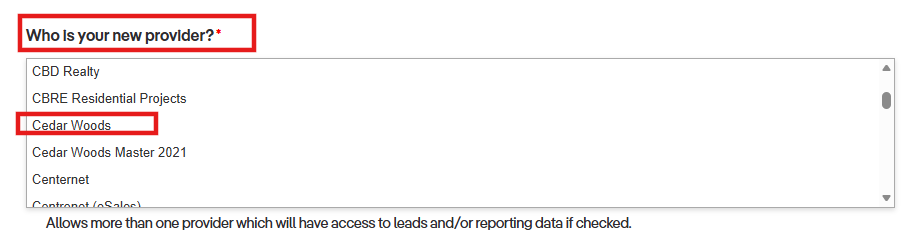
Note: DO NOT select Cedar Woods Master 2021
REA Review & Integration
- REA Support will:
- Review the submission
- Connect the Project Profile to the CRM
- They may contact:
- Cedar Woods team, or
- CRM/technical team
What Happens After Submission
- Integration is configured by REA
- Data begins flowing to:
- HubSpot
- CRM
Troubleshooting
Issue: Data not flowing to CRM/HubSpot
If data is not appearing:
- Confirm the form was submitted correctly
- Verify correct provider selection (Cedar Woods)
- Check Agent ID used
Still not working?
Contact REA Support, or Reach out internally for assistance